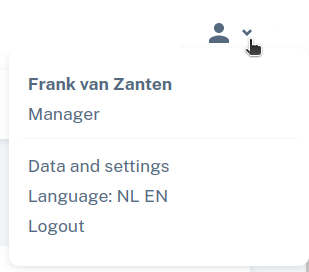
In the dropdown menu at the top right of the screen, you can see the name of the user who is logged in. Below that is the role under which the user is logged in to the current environment. Clicking “Data and Settings” will take you to your user information.
User Information In the "User Information" tab, you can view and edit the following information: Department, Job Title, Phone Number, Email Address, and Comments. The remaining information can only be edited by users with admin rights in Testersuite.
The Save button allows you to save the changes made.
Email notifications
In the main menu on the left, there is an option to adjust your settings for automatic emailing. For example, for automatic emailing of defects. For more information on how this works, see the Workflow section.
In addition, you can configure here whether you want to receive an automatic mail when you have become the active tester in a test run. The active tester is the one who is due to perform a test in a test run.
You can also set whether you want to receive an email when comments are posted that are relevant to you. For example, when someone adds a comment to a defect that you have subscribed to.
The Save button allows you to save the changes made.
Change password
In the main menu on the left, there is an option to change your password. A password must meet the following minimum requirements:
- minimum 12 characters
- at least 1 lower case
- at least 1 capital letter
- at least 1 digit
You can save the changed password by clicking the Save button.
two-step verification Two-step verification adds an extra security check when you log in. You can find out exactly how this works and how to set it up on this page.