A test case is used to describe a single test or test scenario. A test case can be linked to a product or requirement; in that case, the test case provides information about testing that specific item. It is also possible to create standalone test cases that are not directly related to a specific product or requirement.
Creating and maintaining test cases
You can create and maintaintest cases in the test case list. Here, you can use the Newbutton to create anew test case. You will then be prompted to enter the test case details. If desired, you can further break down the test case into test steps in the Steps tab. You can find more information about test steps here.
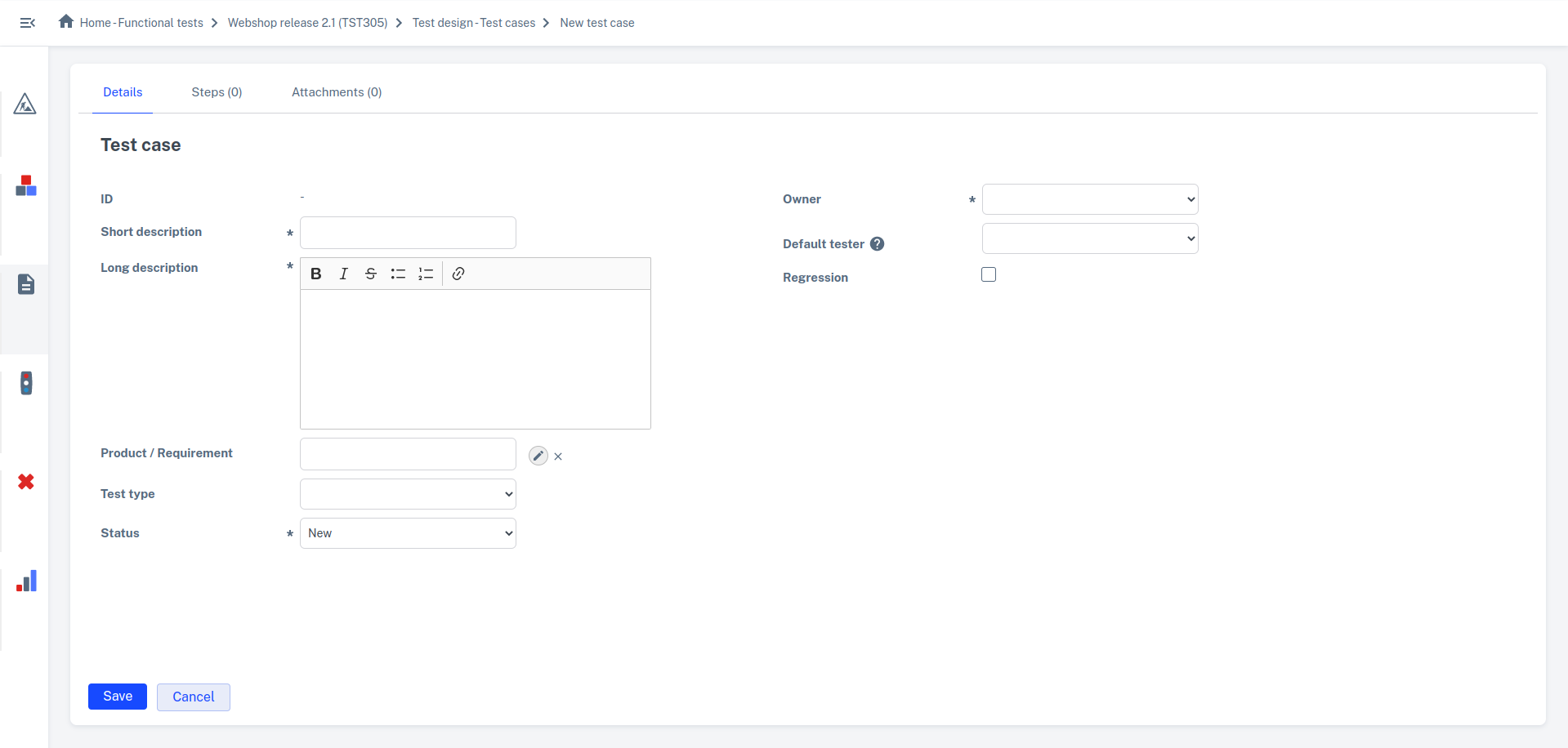
When you create a test case, you'll see the following screen:
Long Description
Provide a proper (logical) description of the test to be performed in this field. If a test case has no test steps then the Long description is offered as the only test step to be performed by the tester.
Product / Requirement
Here you can link the test case to a product or requirement that the test case belongs to. Click on the  button behind the field. Select a product or requirement from the 'tree' and the selected item will be entered directly into the field. You can empty the field with the cross.
A test case does not necessarily have to be linked to a product or requirement.
Status
This refers to the design status of the test case. This can be used to track the progress of creating/designing test cases. By default, the last status is Ready for test execution. This means that the test case is ready to be scheduled and executed in a test run. Within a test run, the test case then goes on to receive an output status(OK, Not OK etc.).
Default tester
Here you can enter the user or group that is the default tester for running the test. When the test case is copied to a test run at a later stage, the test run will take over the default tester from the test case in the Tester field.
If you update the "Default Tester" field and apply this change to the test runs that include the test case, the tester for the test case in those test runs will be updated to the new default tester.
Regression
Here you can indicate whether the test case should be added to the regression test set in the Masterlist after completion of the Test cycle (see also: Regression Testing). When you start writing the Test cycle to the Masterlist you can filter on the Regression column when selecting the test cases.
In the Test cycle overview screen, you Test cycle also create and manage test cases. When you have a product or requirement open, the corresponding test cases are located in theTest Cases tab. When you create a new test case from this tab, the Product/Requirement field in the test case is automatically populated with the relevant product or requirement. See also: Test cycle overview screen

You can also use the action button Create new test case. When you select a product or requirement in the tree you can use this action button to directly create a test case at the product or requirement. The short and long description of the product or requirement are then taken over as short and long description of the test case. If a requirement has a tester then this is taken over as the default tester of the test case.