In the Test Design module, you can create one or more test runs at the same time based on test cases or test scenarios. To do this, select the desired items on the test cases or test scenarios overview page for which you want to create test runs. Then click the “Create Test Runs” button:
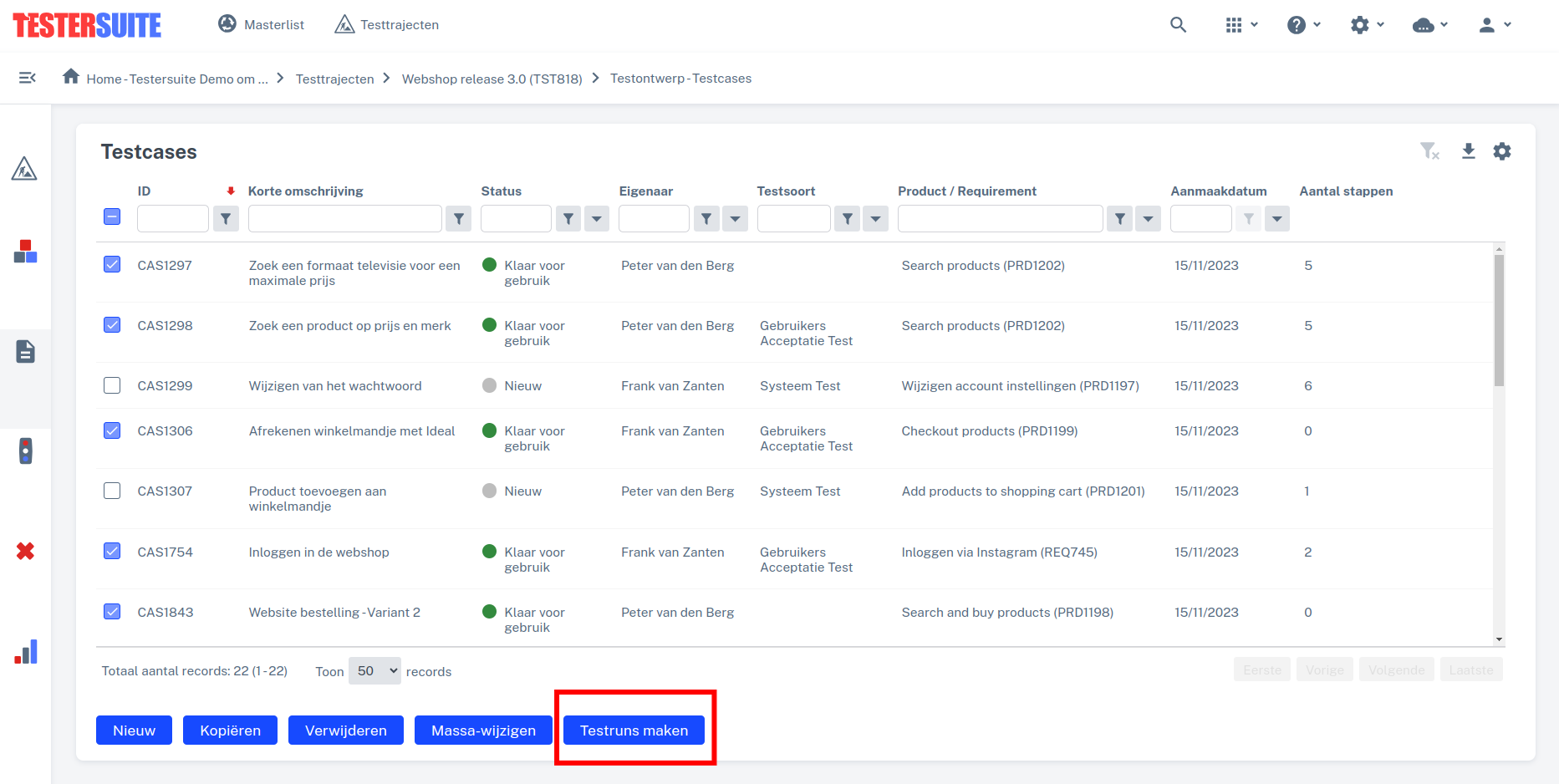
When working with test cases, you'll be asked whether you want to create a single test run with the selected test cases, or create a separate run for each selected test case:

In the case of test scenarios, a test run is always created for each selected test scenario.
On the next screen, you can, if desired, set properties for the test runs that will be created. These properties will be applied to all test runs you create at that time. This allows you, for example, to assign the same start or end date to the new test runs all at once, or to specify whether the order must be maintained when executing the test runs. When creating multiple test runs at once, the following information is copied from the relevant test cases or test scenarios:
- Brief description
- Long Description
- Test Species
Next, click "Run test runs":

The test runs are created. You land in the overview screen of the test runs, where a confirmation of creation is shown:

Creating a test run from the details page of a test case or test scenario
When you open a test case or test scenario, you can create a new test run based on that test case or test scenario directly from that page. To do this, click the “Create New Test Run” action button:

When you create a test run from a test case, the new test run will include that test case. When you create a test run from a test scenario, the new test run will include the test cases contained in that test scenario.