In the main menu of the administrator portal, click Users to open the list of users:
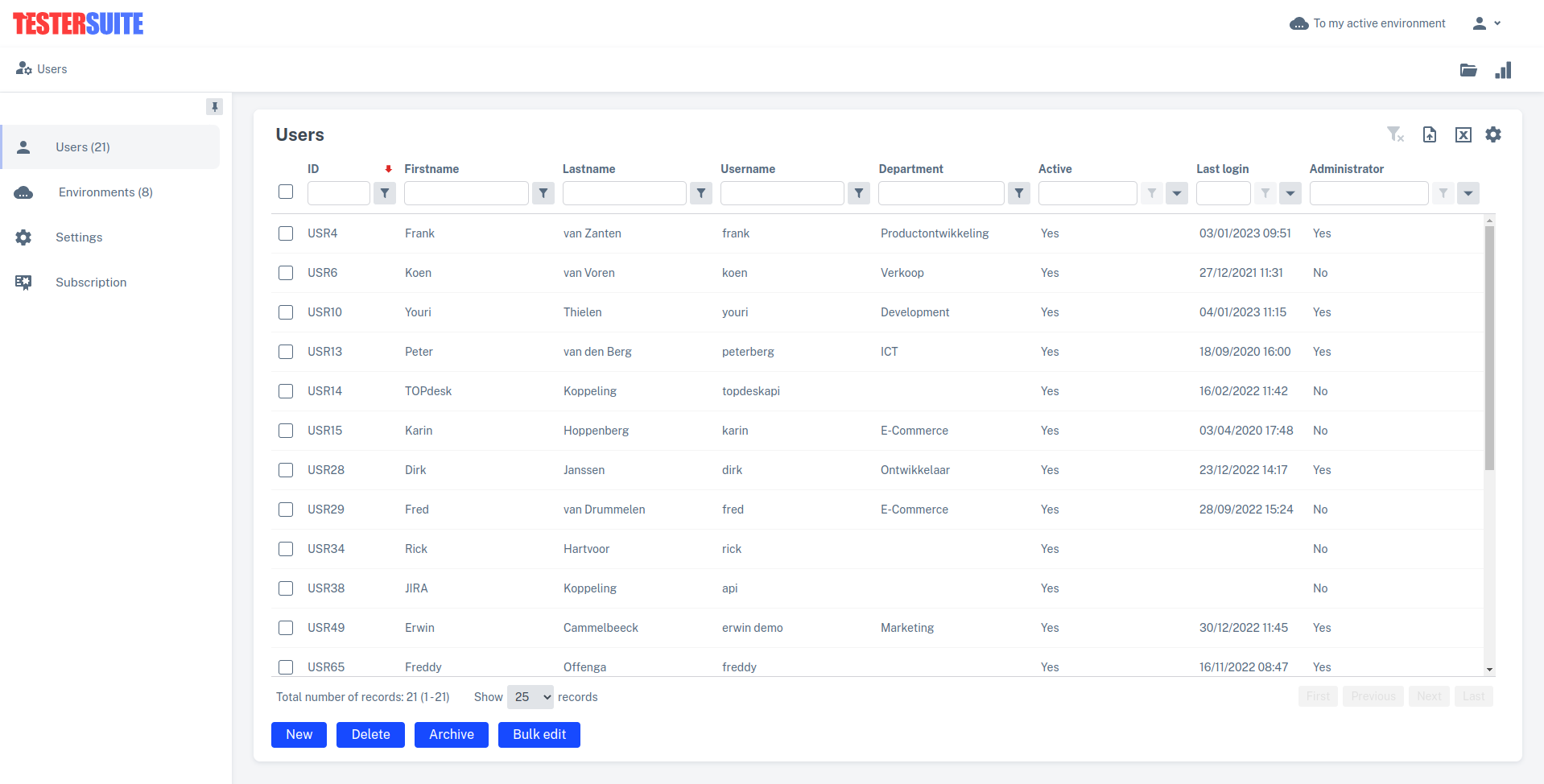
The following activities can be performed here:
- Create new users and modify or delete existing users
- Create multiple users at once by importing them
- Activate or deactivate users (give or withdraw access to Testersuite )
- Grant or revoke access to environments (see below for more explanation)
- Email login details to users
- Disable two-factor authentication (2FA) for users
- Make users administrator (and thus grant them access to the Administrator portal)
- Move users to the archive (and automatically de-activate them) or remove them from the archive
- Importing users with the import function
- Report on number of activated users per month ( Testersuite Premium only)
Archiving Users
You can clean up the list of users by moving them to the archive. Users who are moved to the archive are automatically deactivated. Users can also be retrieved from the archive and restored to the current list of users. The exact operation of the archiving function is described in the section “Archiving Users.”
Grant or revoke access to environments
Administrators can grant users access to environments. If a user does not have access to at least one environment, that user will be notified of this when logging in and logging in will not be possible. Unless the user logging in has administrator rights. In that case, the user can log in but will go directly to the Administrator portal after logging in.
When a user is opened then in the tab Environments it can be determined to which environment(s) the user should have access and with which role. More information about the rights (authorizations) that belong to the different roles can be found here.
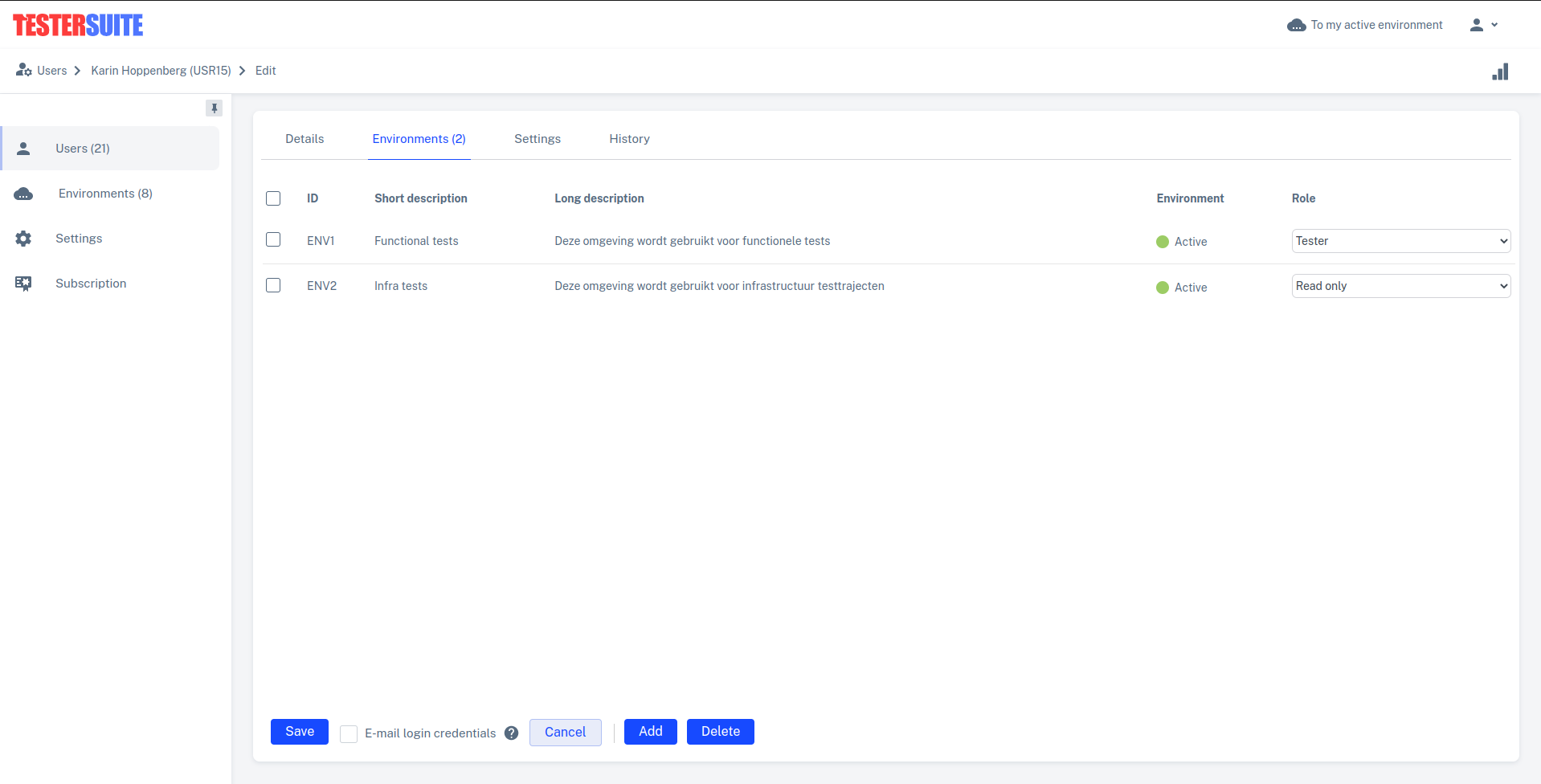
At the bottom, click Add to add environments. The lightbox for adding environments opens.
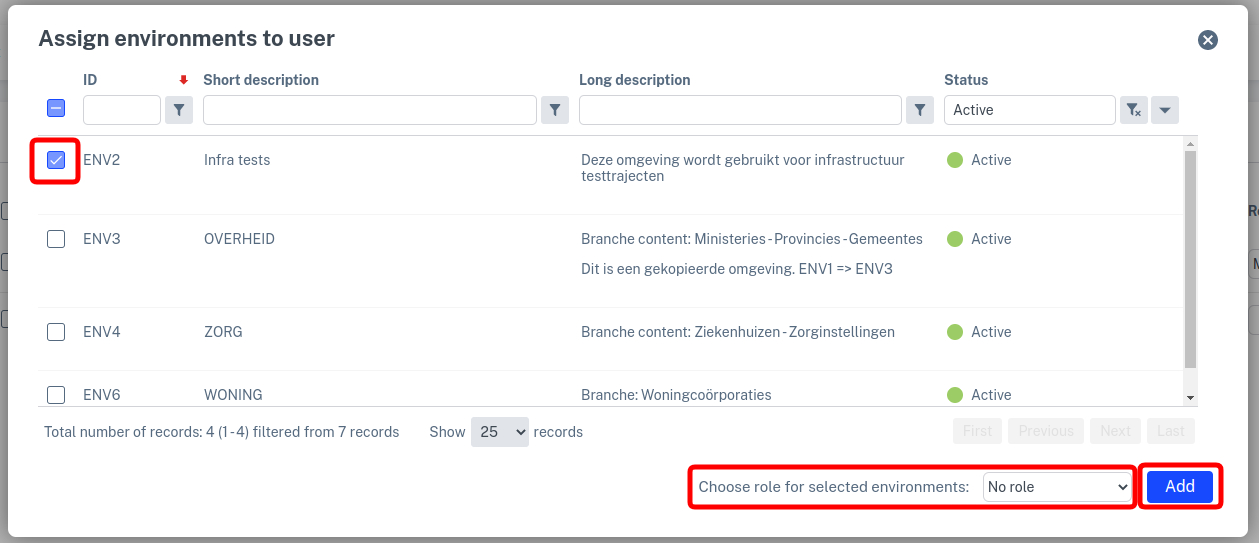
Select the environments you want the user to have access to. Optionally, at the bottom, choose a role that the user should be given in the selected environments. Choosing roles can also be done after closing the lightbox. Finally, click Add.
A user must always have a role within an environment. If there are environments for which the user does not yet have a role, this will be reported when saving the user. If a role is filled in for all environments, the user can be saved.
If access to an environment needs to be revoked then this can be done by checking the checkbox for that environment and clicking Delete.

It is also possible to give multiple users access to an environment at the same time. More information on that can be found here.
Maximum number of users
If your organization has purchased a PRO or PREMIUM subscription then the number of users you can activate in a month is capped. The maximum is defined in your organization's contract with Testersuite. For example, if your organization has a Bundle 10 subscription then you can activate a maximum of 10 users per month.
If you have a PREMIUM subscription then it is allowed to exceed the maximum by 20%. In the previous example you can activate up to 12 users. Attention! For the excess, you will be charged extra. When there is an overage, you will be warned so you can still avoid additional charges. When you structurally run into an overspend, it may be wise to upscale, for example to Bundle 25. Please contact support@testersuite.nl for this.
In Testersuite PREMIUM, you can see in the user report how many users have been (are) activated in a month. At the top right of the list of users is the report button: 
Deleting Users
Userscan only be deleted if they have never logged in to Testersuite. Once a user has logged in, they can no longer be deleted.