Add an extra layer of security to your Testersuite by setting up two-factor authentication (2FA). Testersuite two different types of two-factor authentication. Below, you'll find instructions on how to set up and use each one:
To do this, you'll need an authenticator app on your phone, such as one of the options listed below:
Setting Up
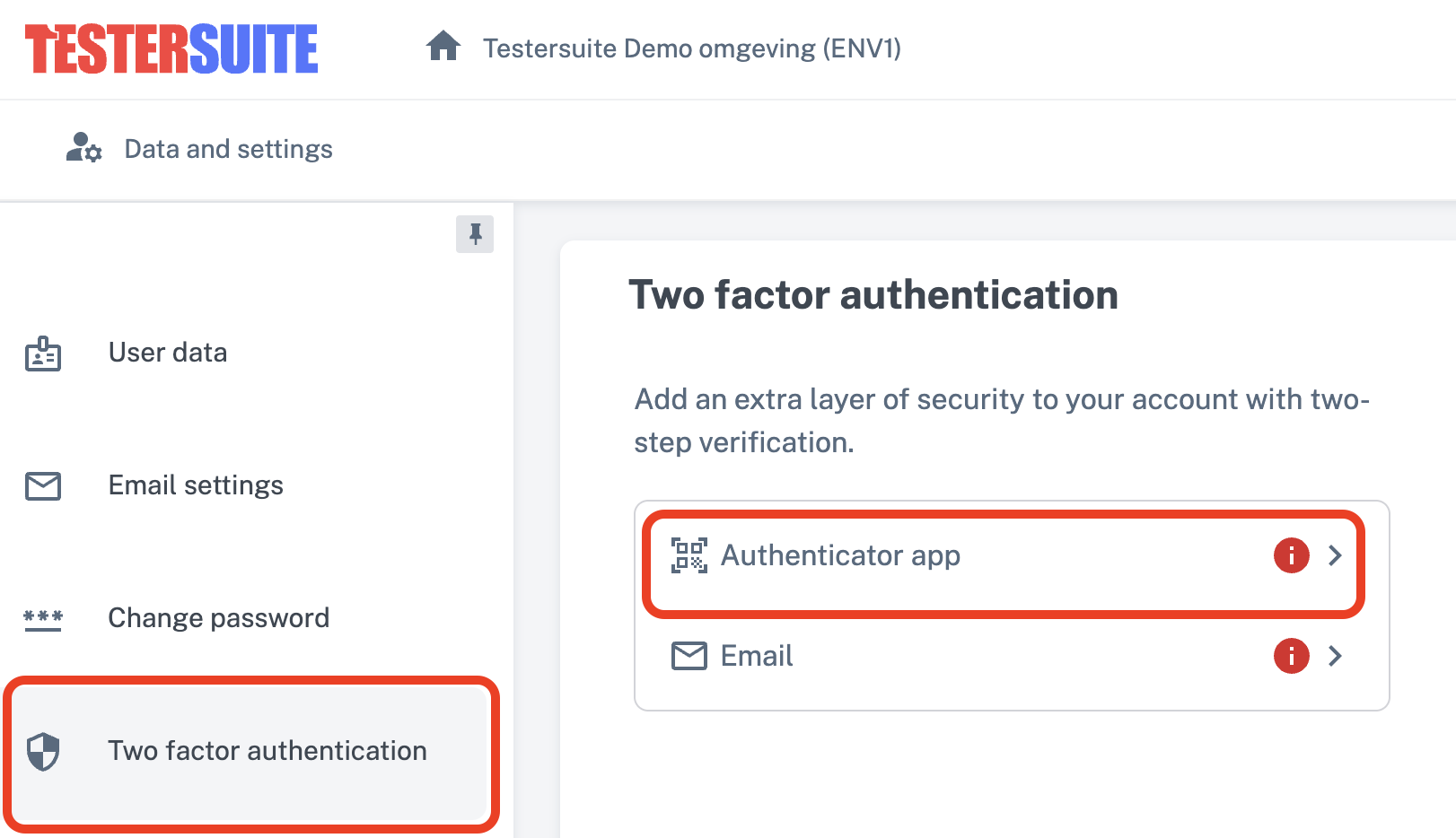
Set up 2FA by going to your user settings and then clicking the "Two-Step Verification" tab. Next, click the "Authenticator app" option:
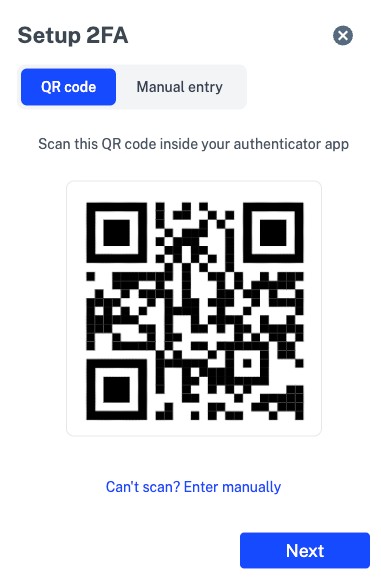
A pop-up window will open containing a QR code. Scan the code with your Authenticator app to set up 2FA. Would you prefer to enter your credentials manually in your authenticator app? You can do so using the information in the 'Manual entry' tab:
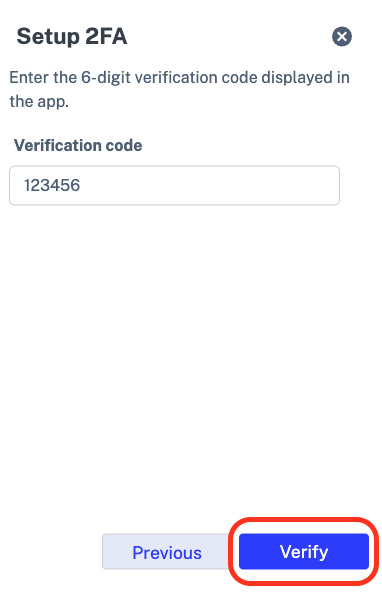
Your Testersuite account will be added to your authenticator app. Click on "Next," enter the 6-digit code from your Testersuite account in your authenticator app, and click on "Verify" to complete the setup of 2FA:
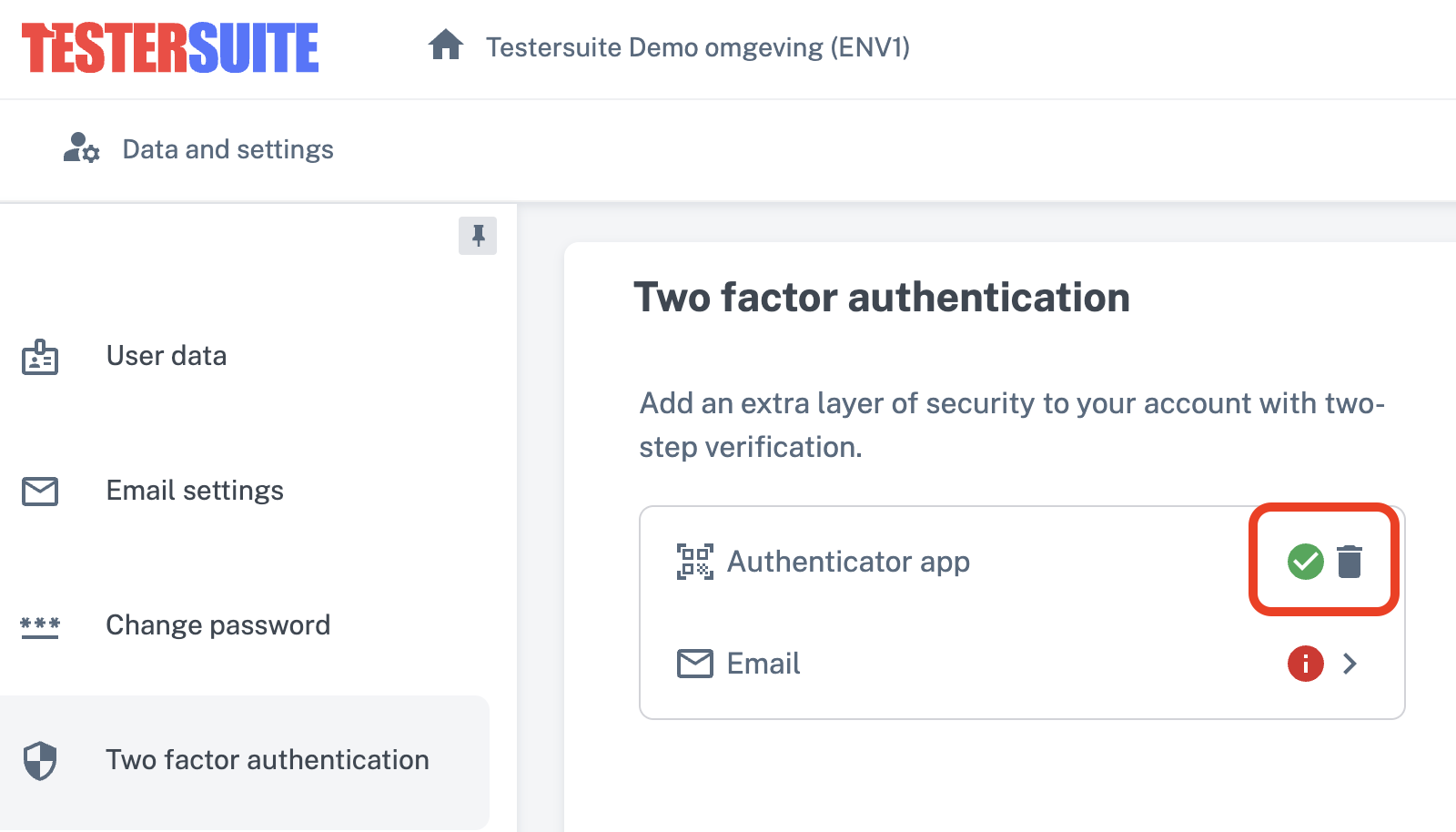
If the setup was successful, a green check mark will appear next to the "Authenticator app" option. If necessary, you can delete your 2FA setting using the trash can icon:
Logging in with 2FA via an Authenticator app
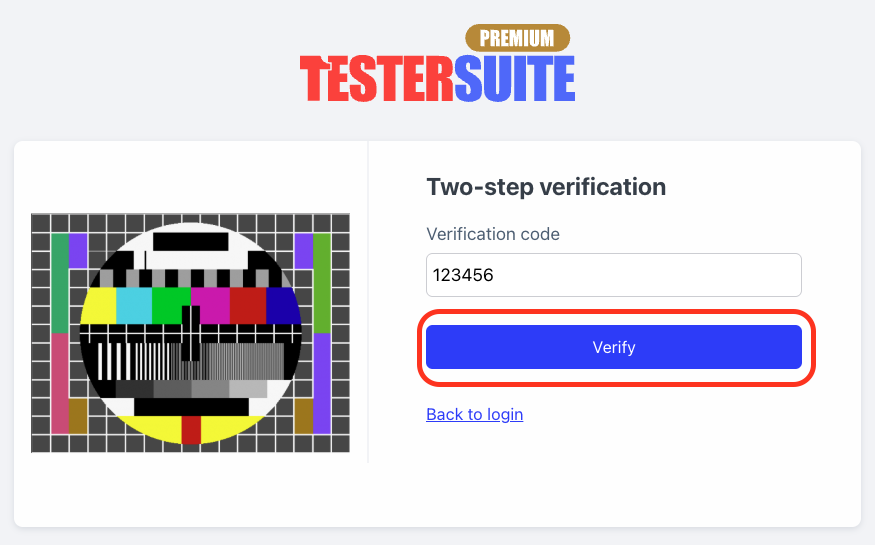
Once you’ve set up 2FA for your Testersuite , you can use it to log in. On the login screen, enter your username and password, then click “Log in.” Next, an additional step will appear where you’ll enter the 6-digit code for your Testersuite from your authenticator app. Click “Verify” to log in:
Setting Up
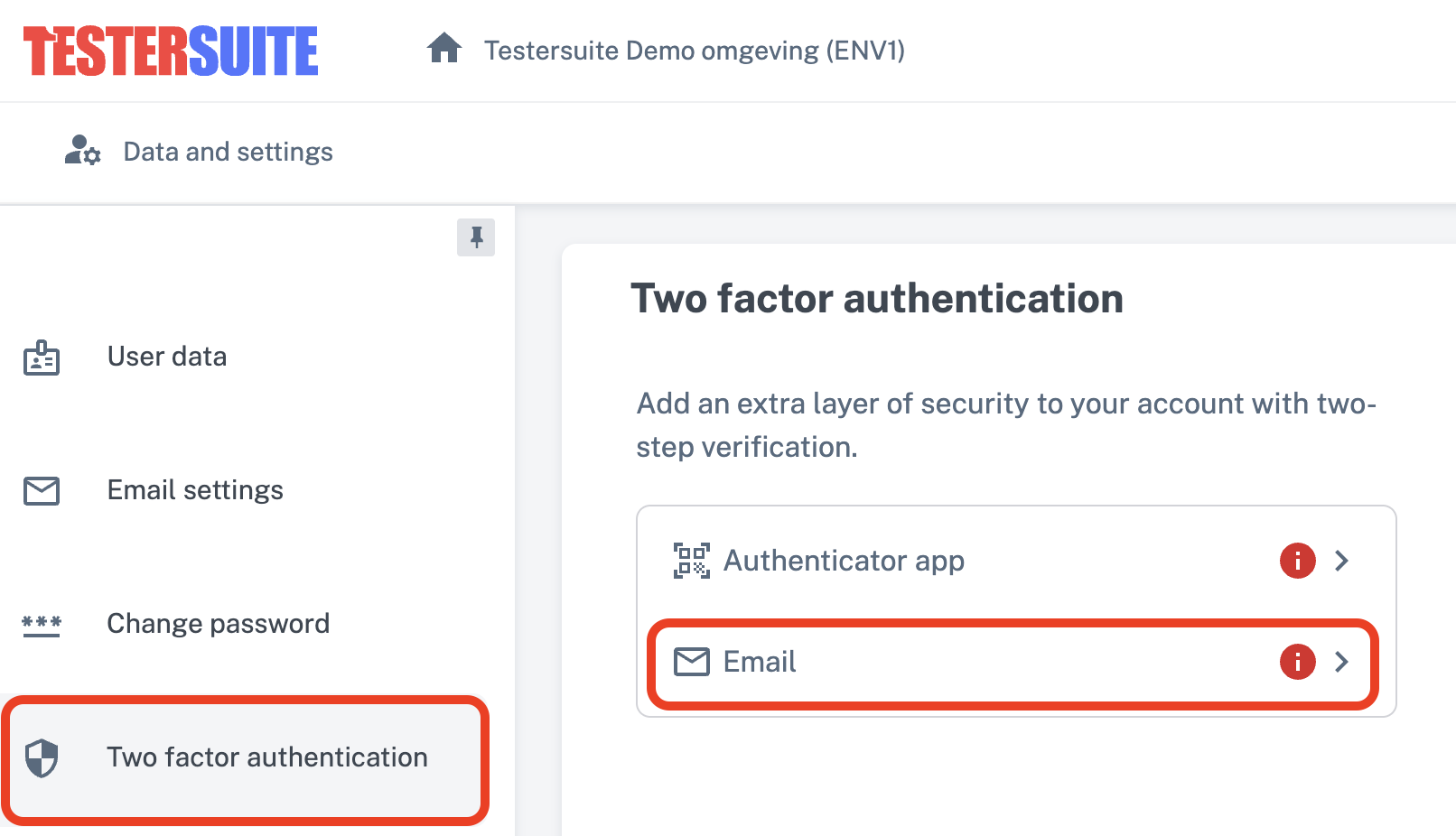
Set up 2FA by going to your user settings and then clicking the "Two-Step Verification" tab. Next, click the "Email" option:
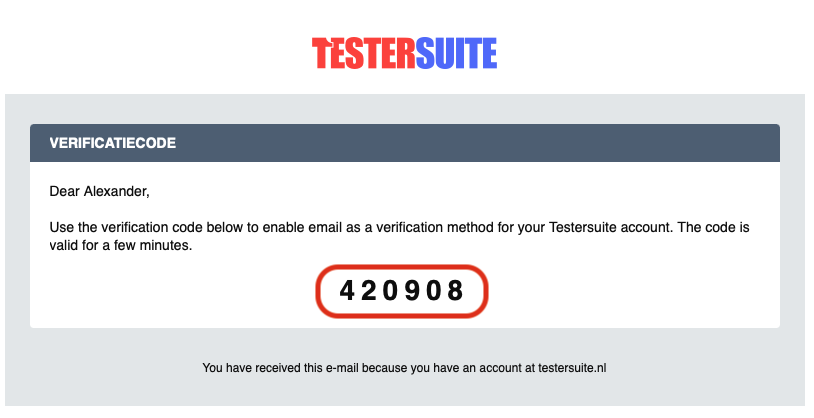
A pop-up window will open, and an email will be sent to the email address associated with your Testersuite . The email contains a 6-digit code:
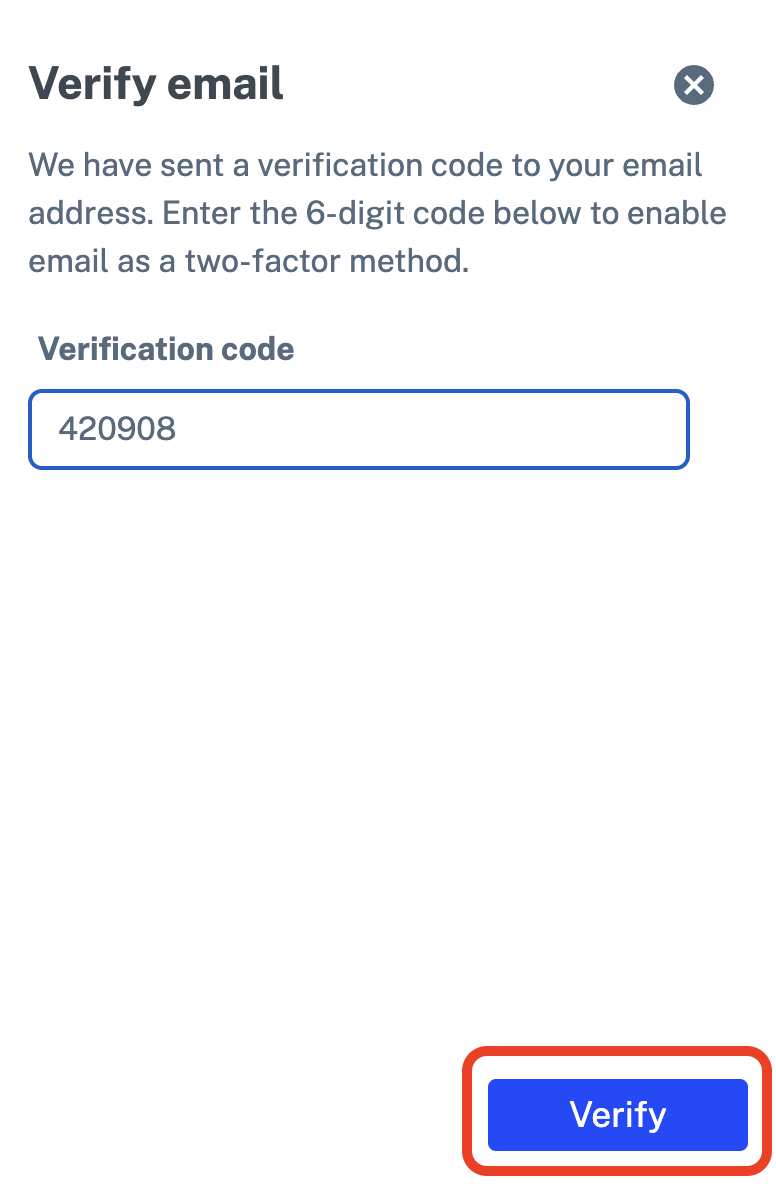
Enter the code from the email into the pop-up window and click “Verify:”
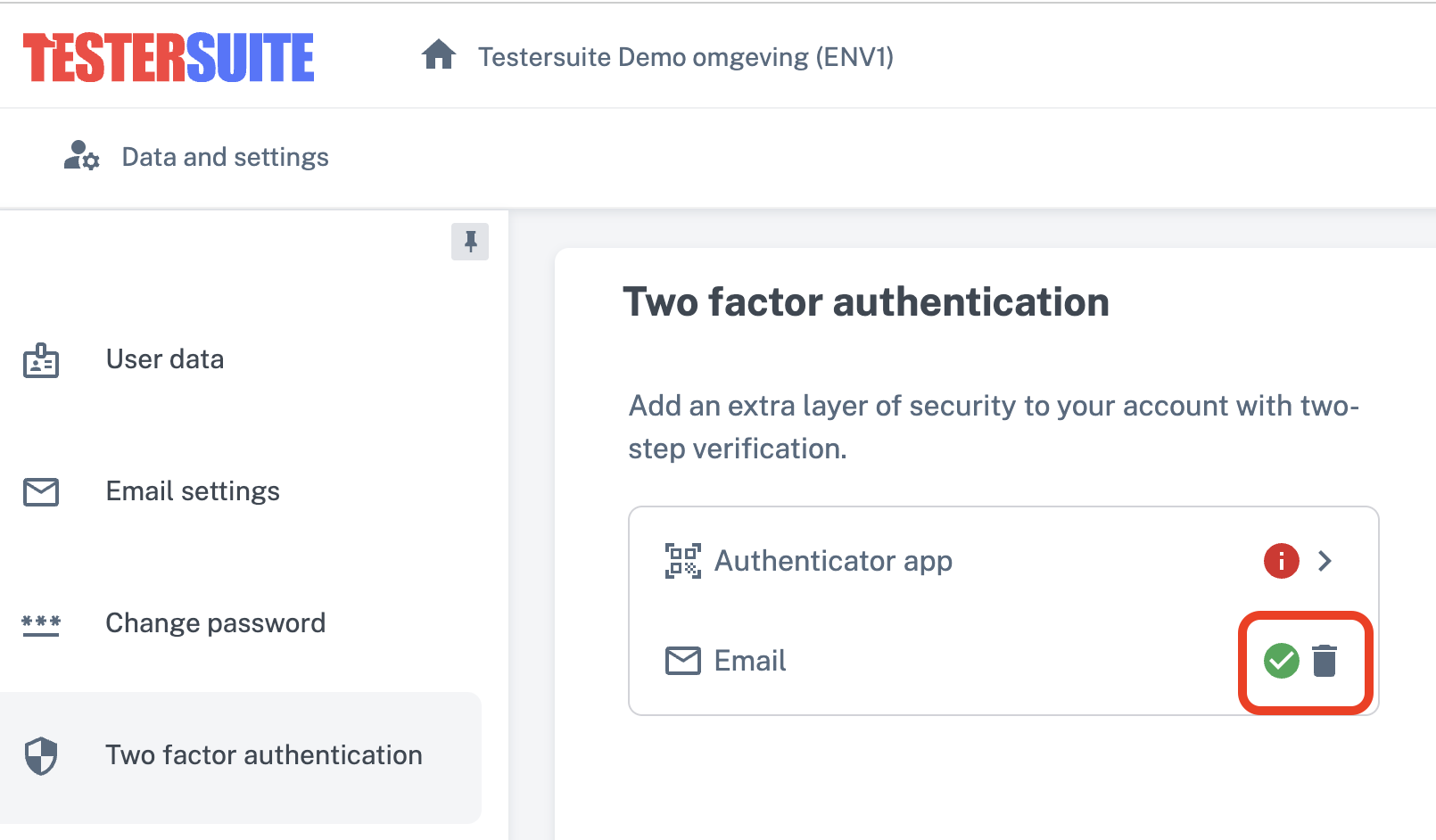
If the setup was successful, a green checkmark will appear next to the “Email” option. If necessary, you can remove your 2FA setting by clicking the trash can icon:
Log in with 2FA via emailat
. Once you've set up 2FA via email for your Testersuite , you can use it to log in. On the login screen, enter your username and password, and click "Log In."
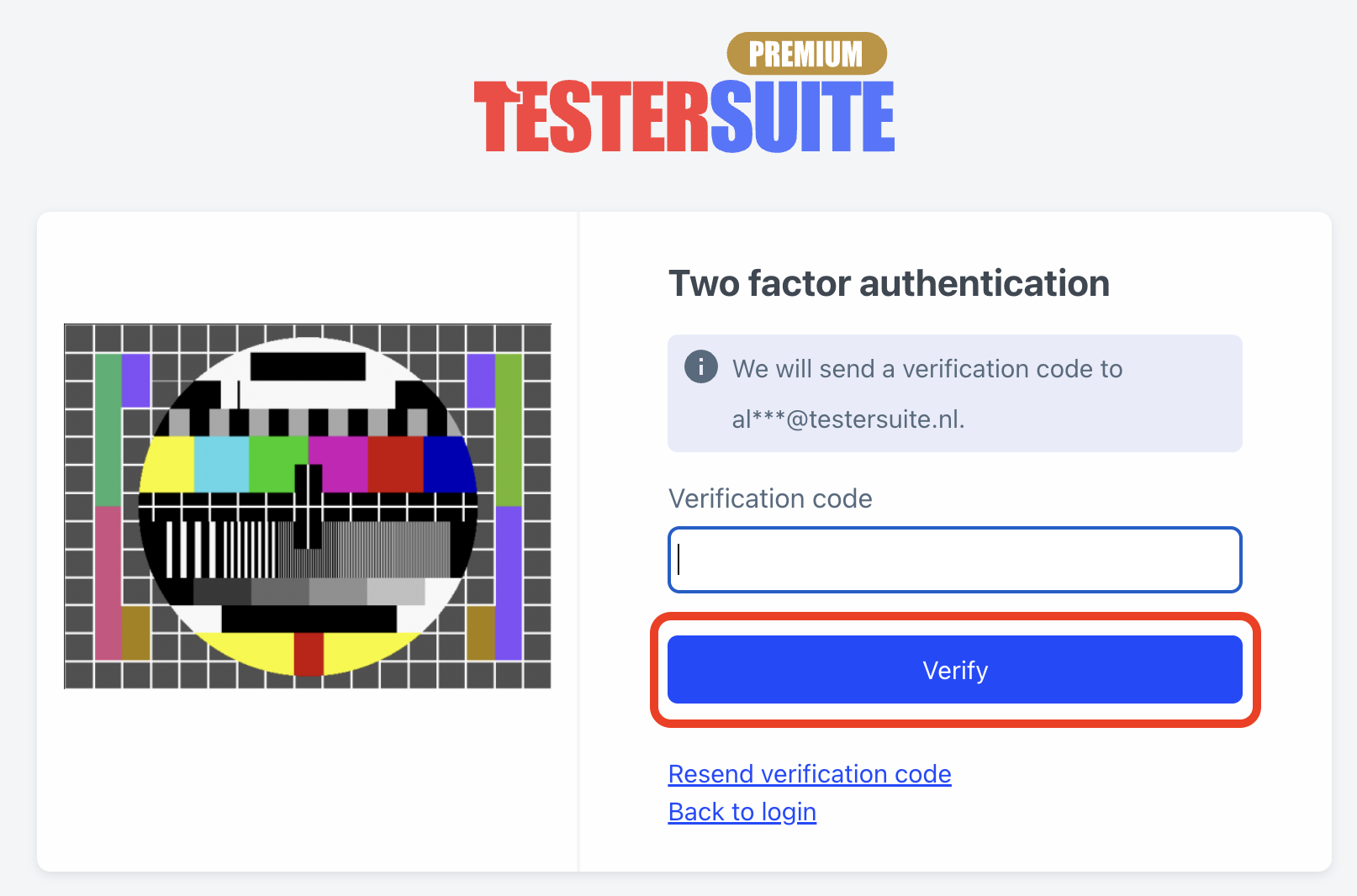
An email containing a 6-digit login code will be sent to you. Enter the code from the email in the “Verification Code” field and click “Verify” to log in:
The email also includes a "Log In Now" button. This will log you into Terstersuite immediately. This means you won't need to copy the code to the login screen.